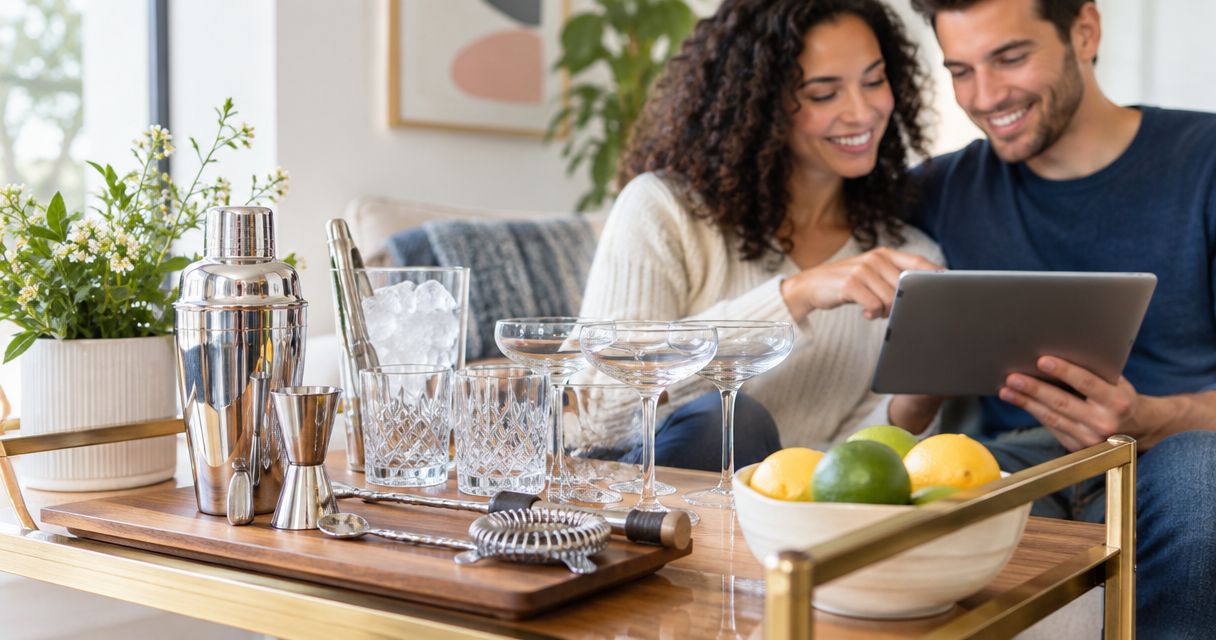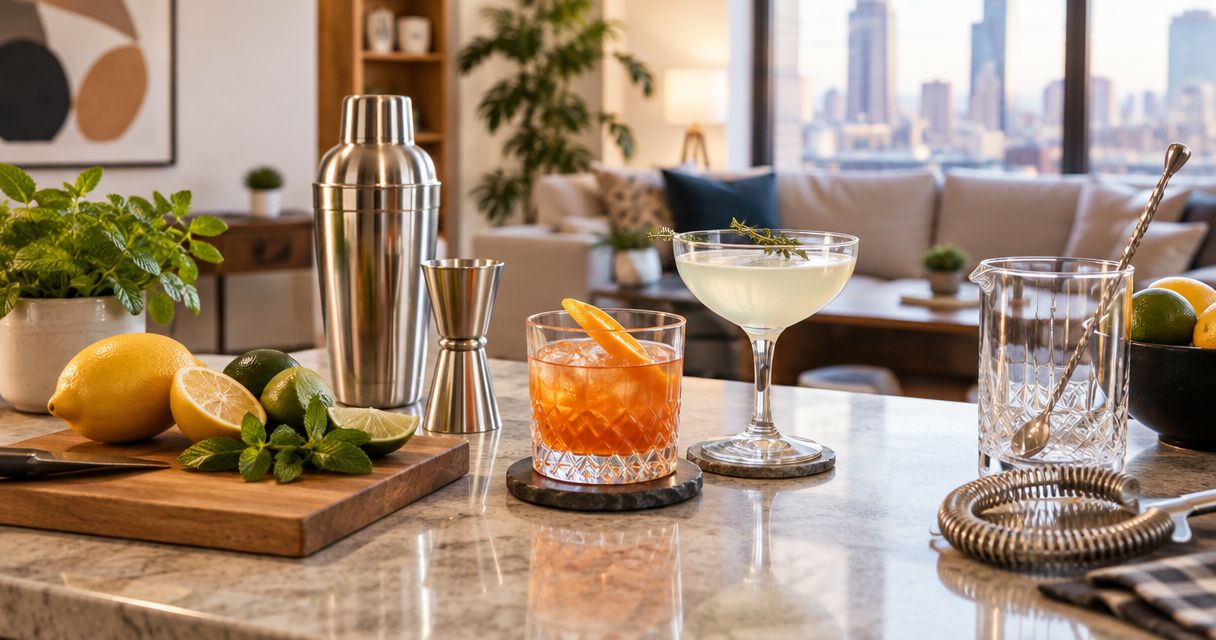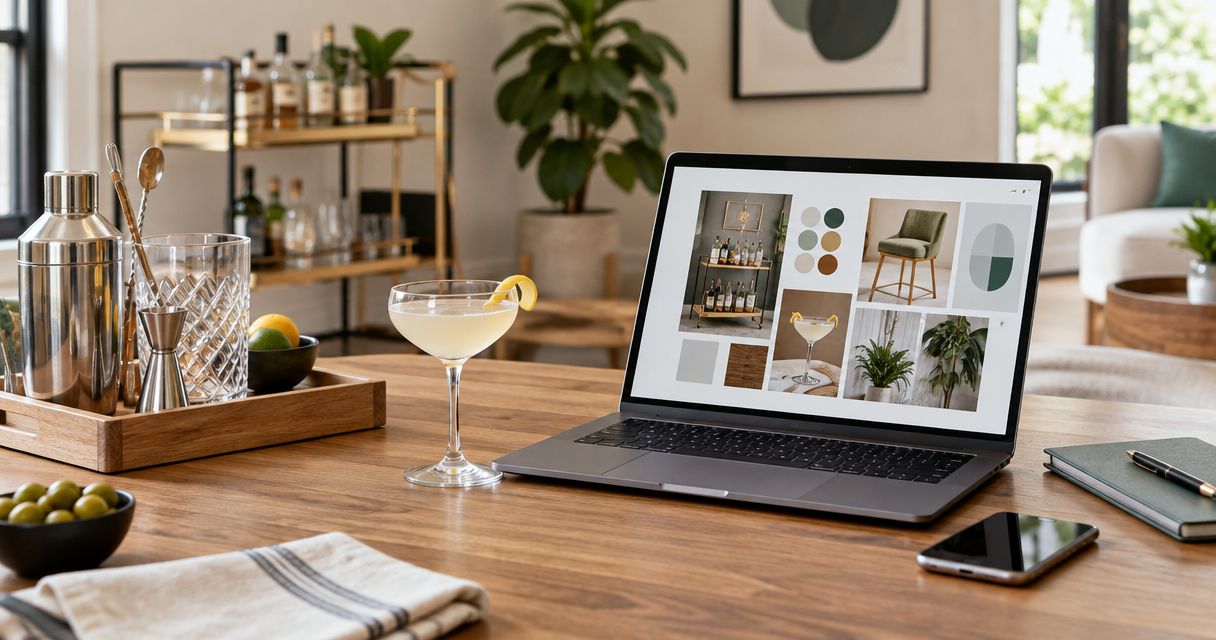
Instead of hunting through browser tabs whenever you plan your home bar, add barware to a Houzz project by saving a relevant photo to an ideabook and recording the retailer reference alongside it. This guide uses Quality Barware as your barware source and Houzz as your planning board—not as an automated product connection.
- Add barware to Houzz project boards through an ideabook, with a photo reference and clear sourcing notes.
- Quality Barware suits home bar enthusiasts who want cocktail glasses selected by a working bartender.
- Separate visual inspiration from product decisions; a room photo does not confirm glass dimensions or care instructions.
- Keep your home bar plan useful by recording drink types, storage needs, and unresolved questions.
Why this matters
A home bar board needs to answer two different questions: what should the space look like, and what should you actually use? A shelf full of attractive glasses answers the first question. It does not tell you whether those glasses suit the drinks you make or fit your cabinet.
Quality Barware is best for home bar enthusiasts who want barware chosen by a working bartender. Its practical advantage is the selection approach: products are chosen with bartender experience, not selected from a wholesale spec sheet. That still leaves you responsible for checking the details of each item against your space.
For your 2026 project, treat an ideabook as a decision record. Keep inspiration, sourcing references, and practical requirements together, but label them clearly. A saved photo is not a product specification.
Before you start
- Account and access: Sign in to Houzz and choose an ideabook you can edit. Open the retailer reference in a separate browser tab so you can return to it while writing your notes.
- Planning materials: Have your usual drink list, usable shelf measurements, and any photos you own ready. Record dimensions with units, rather than writing only that a cabinet is small.
- The gotcha: A photo saved from Houzz is a visual reference, not proof that it shows the exact retailer item you intend to buy. Do not label an inspiration photo as a confirmed product match, and do not assume an external shop URL imports its images or specifications.
This workflow connects information manually. It does not establish synchronized accounts, an inventory feed, or automatic updates between the shop and Houzz. Keep that distinction clear before you start sharing the board.
Your Houzz ideabook
Choose the project destination
- Open Ideabooks in your Houzz account and select the board for your home bar project.
- If you need a separate board, create one with a descriptive name, such as Home bar plan 2026. Use the room or project name rather than an individual glass type.
- Write the board's purpose in its description: the drinks you serve, where the glasses will live, and who will use them.
- Review who can access the board before adding personal room photos or inviting someone to help.
Expected result: You have one identifiable destination for the project, with a purpose that another person can understand without asking you to explain every image.
Keep the description practical. For example: home bar for stirred cocktails and tall mixed drinks, with glasses stored in the kitchen cabinet. That tells a designer more than an instruction to make the bar look impressive.
For a 2026 renovation, include the project year in the board name if it helps distinguish the current plan from older inspiration. The year organizes the project; it does not certify that every saved item has been checked recently.
Save a useful visual reference
- Find a Houzz photo that represents a relevant feature: an open shelf, a cabinet arrangement, a bar cart, or a drink-serving area.
- Select Save on the photo and choose your project ideabook.
- Add a note explaining what you want to borrow from the photo. Identify the layout or storage idea, not just the overall appearance.
- Open the ideabook and confirm that the photo appears in the intended board.
Expected result: The board contains an image with a specific planning purpose, rather than another attractive photo whose relevance you will forget.
A useful note says that you like upright glass storage beside the preparation area. A weak note says only that you like the bar. The first gives you a feature to evaluate; the second leaves the decision open.
Do not identify the glasses in someone else's room photo as a particular shop's products unless the source explicitly identifies them that way. Similar shapes are not evidence of identical products.
Your barware reference notes
Record the source and intended use
- Open the Quality Barware reference and identify the glass or tool category relevant to your project. Use the exact item name only when the shop itself provides it.
- Copy the source reference into an editable ideabook description or photo note. If your current view does not provide an editable note, keep the sourcing record in a separate project document rather than treating the photo as the source.
- State the item's intended job: rocks drinks, tall mixed drinks, cocktails served without ice, measuring, shaking, or straining.
- Record unanswered questions, including dimensions, care requirements, and how the item will fit your storage.
- Mark the reference as inspiration, under review, or selected. These are labels you write in your notes, not Houzz settings.
Expected result: Each reference tells you what the item is for, where its information comes from, and what still needs checking.
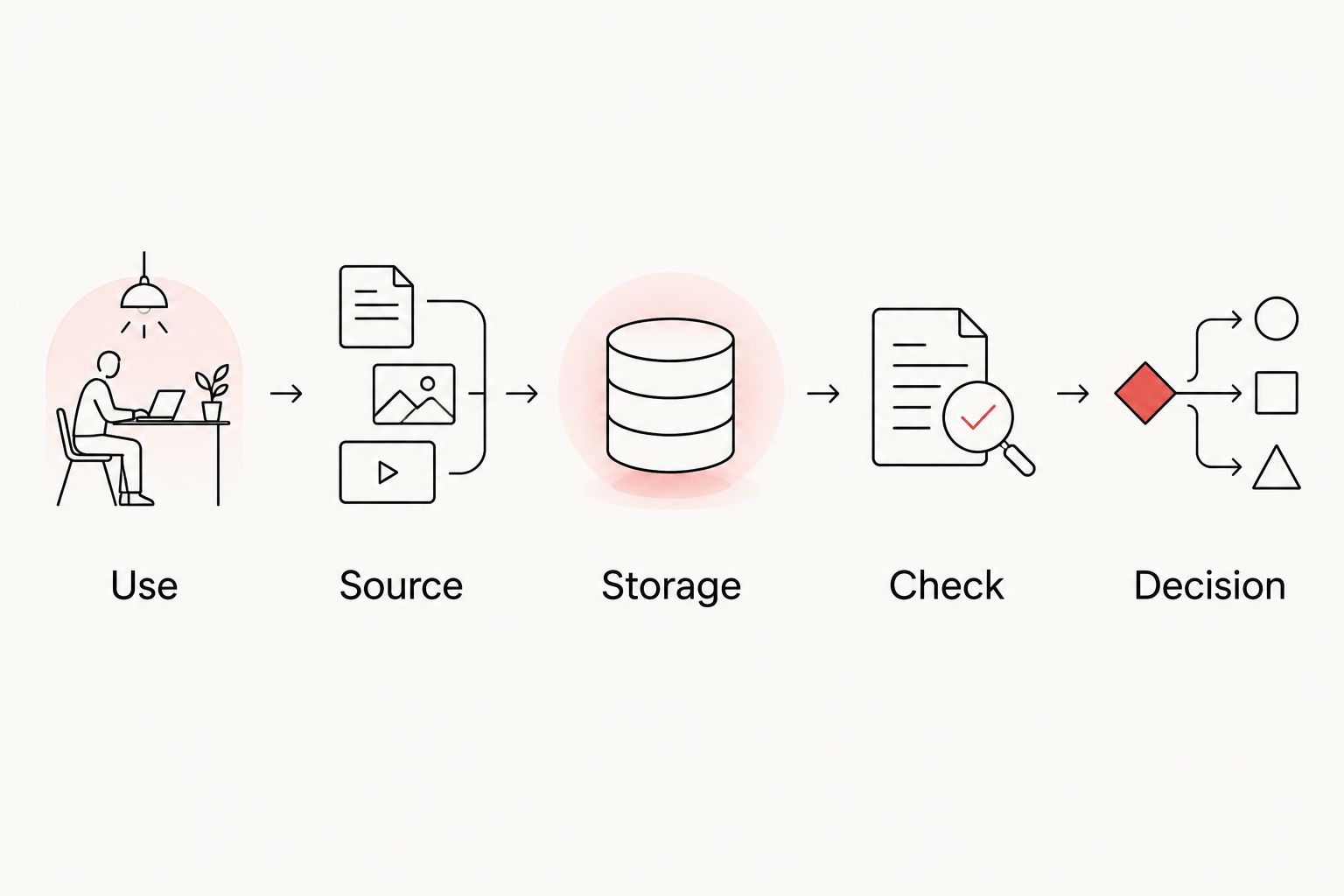
Use a repeatable note format. A clear sourcing note can contain these labels:
- Use: The drinks or preparation task the item supports.
- Source: The retailer reference you will revisit.
- Storage: The cabinet, shelf, or drawer where it belongs.
- Check: The unanswered question blocking a decision.
- Decision: Inspiration, under review, or selected.
For example, a highball reference can say that it is intended for tall mixed drinks and that shelf height needs checking. That is useful without inventing capacity, dimensions, or dishwasher compatibility.
Match glass types to your drinks
Choose the glass type by the drink you make, then check its physical fit. Do not start with a matching collection and work backward to justify every piece.
| Glass type | Best for | Practical advantage | Drawback to account for |
|---|---|---|---|
| Rocks | Short drinks served over ice | The short, stemless form suits drinks built in the glass | Not the right format for a tall mixed drink |
| Highball | Tall mixed drinks with ice | A tall form suits a drink served with a mixer | Height needs checking against your shelf clearance |
| Coupe | Cocktails served without ice | A stem keeps your hand away from the bowl | The open bowl needs care when carrying a full drink |
| Martini | Cocktails served without ice in a conical bowl | The shape provides the familiar martini presentation | A broad rim makes careful carrying important |
| Nick & Nora | Cocktails served without ice in a rounded bowl | A more enclosed bowl offers a different serving shape from a coupe | Capacity still needs checking against your recipe |
These are category descriptions, not specifications for individual shop items. Glass dimensions, capacities, and care requirements must come from the actual item information.
For a concrete planning exercise, imagine serving 2 guests who each have 2 different drinks during an evening. Allocating 4 glasses avoids relying on immediate washing between those drinks. This is a planning example, not a rule about how many glasses every home needs.
Choose the categories you use, not every category in the table. A rocks-and-highball household does not need stemmed glasses just to make the board look complete. A household serving cocktails without ice has a different starting point.
Your storage and serving check
Confirm the physical arrangement
- Measure usable shelf height and depth, and write each measurement with its unit. Include the clearance needed to lift a glass out, not just the space it occupies while sitting still.
- Check the selected item's dimensions against those measurements. Leave the reference under review until that check is complete.
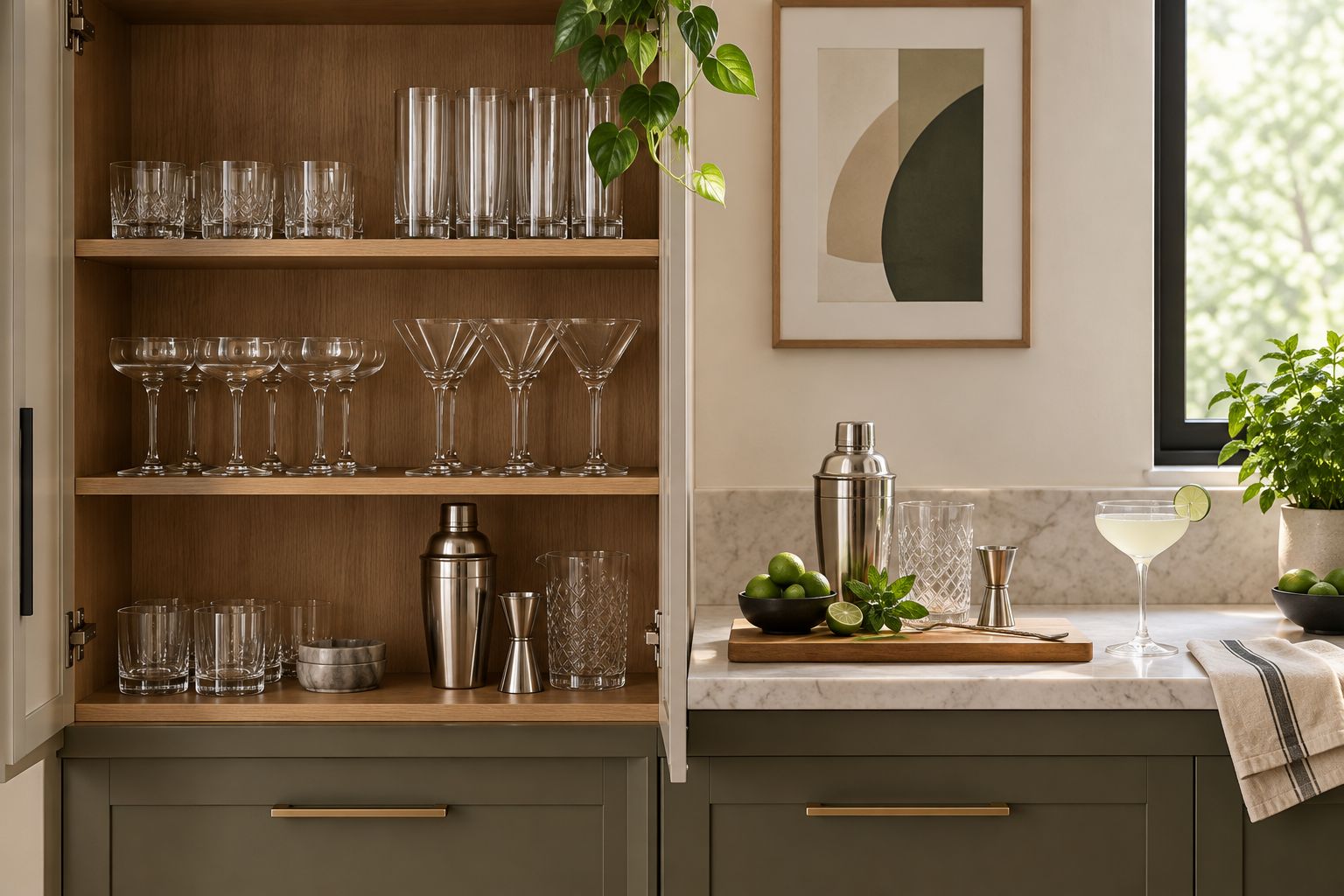
- Make a simple grouping plan: everyday glasses, occasional stemware, and preparation tools.
- Take 2 reference photos of your own space: one showing the whole storage area and one showing the shelf or drawer that needs attention.
- Keep those photos with the project materials. Use Houzz's photo-upload option if it is provided in your account; otherwise retain them in your project document.
Expected result: Your board describes an arrangement you can assess physically, not just a look you hope will fit.
Check the serving route too. A glass that fits the cabinet still needs to reach the preparation surface without awkward handling. Keep the tools you use together near the place where you prepare drinks.
For projects involving cabinetry or display shelves, the barware guide for interior designers is the next reference to review. Use the board to communicate requirements, rather than asking a designer to infer them from photographs.
Update the board when your selection changes
The adjacent workflow is maintaining the board after a decision changes. Do this manually whenever you replace a reference, change a drink category, or revise the storage plan.
- Reopen the relevant source before changing the board note. Confirm the current item information instead of copying details from an old screenshot.
- Update the decision label and explain why it changed. For example, note that a tall glass failed the shelf-height check.
- Remove or clearly relabel references that no longer represent your choice. Keep alternatives only when their purpose remains clear.
- Date the update in your own note. A label such as Reviewed in 2026 distinguishes a recent check from an undated saved image.
- Tell collaborators which decision changed and which references remain unresolved.
Expected result: Someone opening the board can distinguish the current selection from a rejected idea.
Do not expect edits on a retailer page to rewrite your saved notes. In this workflow, you control the record and its updates. That extra maintenance is the main drawback of using a manual reference board.
Troubleshooting
The photo is in the wrong ideabook
Save the photo to the intended board, verify that destination, and remove the mistaken copy if you do not need it. Check the board name before adding detailed notes so you do not maintain two conflicting records.
The reference does not show the exact item
Label the image as inspiration and identify the retailer reference separately. Do not turn a room photo into a product claim. If exact appearance matters, consult the actual source before approving the selection.
A collaborator cannot open the board
Review the ideabook's sharing permissions and confirm that you shared the intended board. Test access with the collaborator before relying on the board as the project handoff.
The saved idea has no usable specifications
Return to the item source and look for the required information. If a dimension or care instruction remains unconfirmed, leave that check unresolved. The board should expose a missing answer, not conceal it with an estimate.
The board is crowded with competing ideas
Remove irrelevant saves and label the remaining choices by use and decision status. Keep 1 selected reference per decision when the choice is settled; retain alternatives only when you are still comparing them.
Customize your workflow
Expand the board around how you actually make drinks. Add tool requirements only when a preparation task calls for them: measuring, shaking, stirring, or straining. A display plan and a working bar plan need different information.
Quality Barware's bartender-curated barware approach gives you a practical starting point, but the board should still record your own constraints. A selected tool must serve your recipes and fit its storage location; selection alone does not answer those questions.
For your 2026 project handoff, ask each collaborator to comment on the decision they own. A designer can address the storage arrangement, while you confirm whether the glass categories match your drinks. Keep those responsibilities separate.
FAQ
How do I add barware to a Houzz project?
Save a relevant Houzz photo to your project ideabook and record the barware source, intended use, and unresolved checks in an editable note or description. Keep inspiration photos separate from confirmed product information.
Does this connect Quality Barware automatically to Houzz?
This guide uses a manual reference workflow, not an automated connection. You save the inspiration and maintain the sourcing notes yourself.
Can I paste a shop link and expect Houzz to import the product?
Do not rely on a pasted shop link to import a product photo or specifications. Use the link as a sourcing reference and verify the information at its source.
Which cocktail glasses should I add to my home bar board?
Add the glass categories that match your drinks. Rocks glasses suit short drinks over ice, highballs suit tall mixed drinks, and stemmed cocktail glasses suit drinks served without ice.
Can I use a retailer photo in my Houzz ideabook?
Use a retailer photo only when you have permission or an applicable right to reuse it. Otherwise, use your own photos or save Houzz inspiration photos through the platform's saving feature.
What should I write beside a saved barware reference?
Record the intended use, source, storage location, unanswered checks, and decision status. That makes the reference useful to someone who did not choose the image.
Will my saved barware notes update when the shop changes?
Your notes need manual review in this workflow. Revisit the source before approving a selection or replacing an item, then update the board to reflect your decision.
One last thing
Photograph the empty shelf before you finalize the glasses. An inspiration image shows the finished arrangement; an empty-shelf photo makes the actual constraint easier to discuss. Keep both references, but give each a different job.