Instead of keeping a separate barware wish list, use Zola’s Add to Zola browser button to add gifts from Quality Barware to your wedding registry. This 2026 guide covers choosing useful glasses and tools, adding an outside-store gift, and checking what your guests will see.
- To add barware to Zola wedding registry, use Add to Zola on the retailer’s individual product page.
- Quality Barware suits home cocktail enthusiasts who want glasses and tools chosen by a working bartender.
- Check the exact item, set contents, requested quantity, and guest purchase instructions before publishing.
- Start with glasses for drinks you actually make, then add tools that fill a specific gap.
Why this matters
A registry entry needs to tell a guest exactly what you want. A photograph of cocktail glasses is not enough: a single glass and a boxed set create different expectations, even when the pictures look similar.
Zola supports gifts from other stores, so your barware choices do not have to come entirely from its own catalog. The useful workflow is to save the individual retailer item, check the imported information, and inspect the guest-facing entry. Do not treat the import as a finished listing.
Quality Barware is best for home cocktail enthusiasts who want barware chosen by a working bartender. Its practical reason to consider the shop is bartender-led selection rather than products picked from a wholesale spec sheet. That helps with choosing the right glass or tool; you still need to check the individual item’s details.
For a 2026 wedding registry, build around your actual drinks and cupboard space. A matched collection that does not suit either is still the wrong collection.
Before you start
- Have access to your Zola registry and a desktop browser. Sign in to the account that manages the registry. Use Zola’s own instructions to install its Add to Zola browser button; do not install a similarly named third-party tool.
- Choose an individual retailer product page. Identify the exact glass or tool, any selected variation, and whether the item is sold individually or as a set. A shop homepage does not identify a gift clearly enough.
- Resolve set quantity before importing. If a listing contains 4 glasses, requesting 2 sets means requesting 8 glasses. Write down the intended total first so you do not accidentally multiply your request.
The non-obvious gotcha is the product variation. A page can show several choices while retaining the same page address. Check the selected option and make the registry description specific enough that a guest can identify it without relying on the photograph alone.
Choose your barware shortlist
Start with the drinks you make, not with a complete-looking bar cart. Write down your usual serving style: over ice, tall with a mixer, or chilled and served without ice. Then choose glass shapes that match those drinks.
The table below compares categories, not specific products or verified specifications. Check each retailer listing for its dimensions, care instructions, and set contents before adding it.
| Glass or tool | Best for | Practical advantage | Real drawback |
|---|---|---|---|
| Rocks glass | Whiskey over ice and short cocktails | Holds short drinks with ice in a low glass | Not the right shape for a tall drink with plenty of mixer |
| Highball glass | Tall mixed drinks and alcohol-free drinks with ice | Gives ice and mixer room in a tall glass | Takes more vertical cupboard space than a low glass |
| Coupe | Chilled cocktails served without ice | Provides a stemmed serving option with a rounded bowl | The open bowl makes spills easier when carrying it |
| Martini glass | Drinkers who prefer the classic conical shape | Gives a traditional presentation for cocktails served up | The wide rim needs careful handling |
| Nick & Nora glass | Chilled cocktails in a smaller stemmed format | Provides a more enclosed bowl than a wide coupe | Its serving capacity must match your recipe |
| Jigger | Measuring cocktail ingredients | Helps you repeat a recipe instead of pouring by eye | Its marked measures must suit the recipes you use |
| Cocktail shaker | Drinks that need shaking with ice | Mixes and chills shaken cocktails | Needs cleaning and storage; it is not required for every drink |
| Cocktail strainer | Separating a mixed drink from its mixing ice | Controls what passes into the serving glass | The strainer must suit your shaker or mixing vessel |
Choose rocks glasses and highball glasses first if most of your drinks are served over ice. Choose a coupe or Nick & Nora glass first if you mainly make cocktails served up. There is no reason to request every stemmed shape simply because each has a different name.
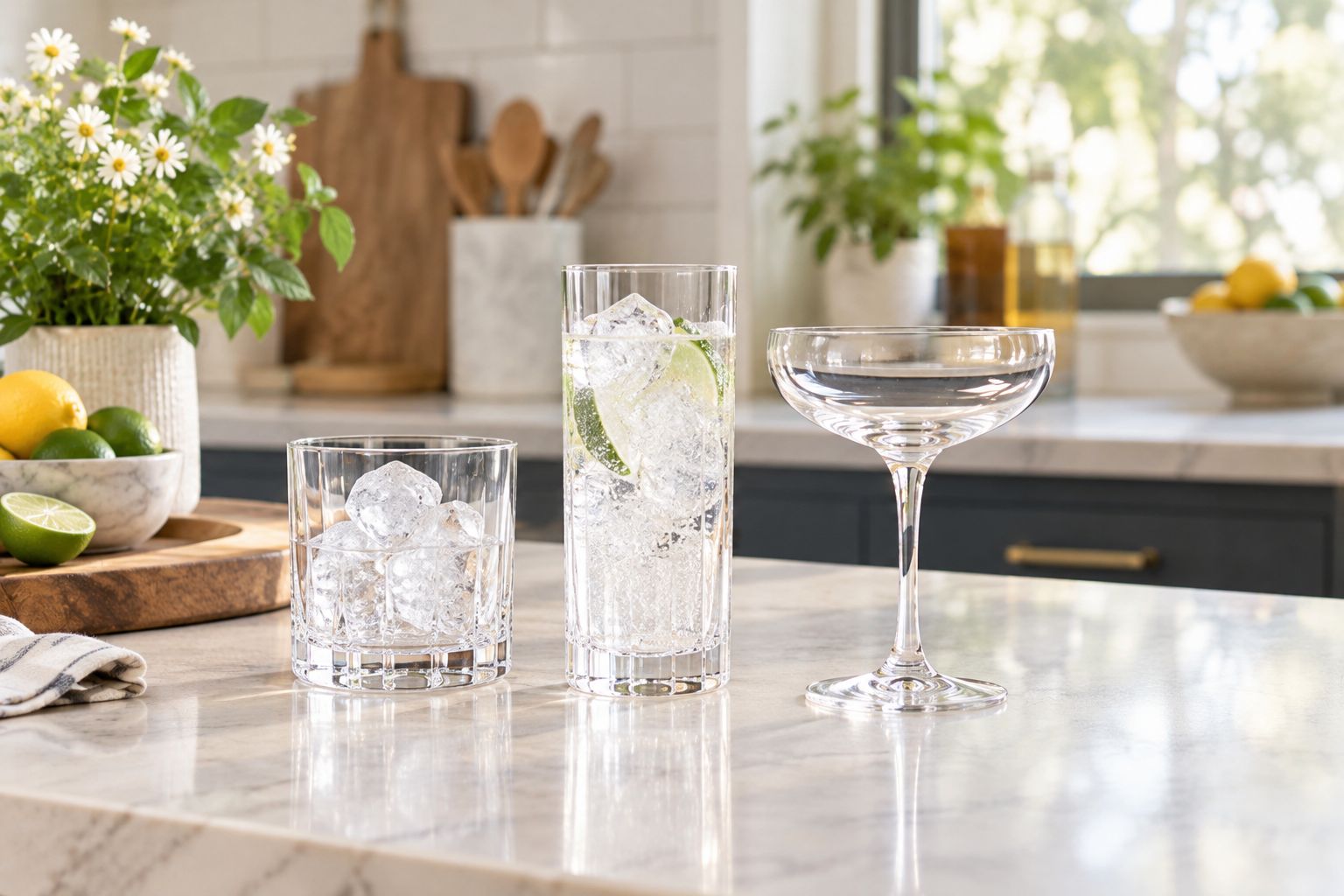
A practical starting request is 2 glasses for drinks you make as a couple or 4 glasses for a small gathering. These are planning examples, not required set sizes. Count what you already own before deciding how many more you need.
For tools, identify the missing job. Request 1 jigger if you need a measuring tool; do not request a tool set solely to obtain it. Use the barware for wedding registries guide to organize the broader shortlist before importing individual gifts.
Browser button setup
- Sign in to Zola and open the registry you want to manage. Confirm that you are editing the correct registry before adding anything.
- Find Zola’s instructions for adding gifts from other stores. Follow its browser-button installation instructions for your browser, using the button labeled Add to Zola.
- Keep the browser control accessible while visiting retailer pages. If you installed a bookmark button, make its bookmarks bar visible so you can use it without leaving the product page.
- Open the individual product page for your first barware item. Select the intended variation before launching the registry tool.
Expected result: You can open Add to Zola while viewing the exact item you want. Installation alone does not add a gift; the product page is the starting point for each entry.
Do not assume a browser button installed on your computer also exists on your phone. Complete this browser-based workflow on the device where you installed it. For a mobile-only setup, use Zola’s own current instructions for adding outside-store gifts rather than trying to reproduce a desktop bookmark workflow.
Gift entry configuration
- On the individual retailer product page, click Add to Zola. Review the item information presented by the tool rather than saving immediately.
- Check the product name and image. Use the retailer’s exact item name, adding a plain clarification about the chosen variation or set contents where the registry allows it.
- Check the destination link. It should open the intended product, not a search result, category page, shopping cart, or account page.
- Set the requested quantity according to the item’s selling unit. Requesting multiple sets is different from requesting the same number of individual glasses.
- Review the purchase choices Zola presents for the outside-store gift. If your intention is for guests to purchase the physical item from the retailer, choose the retailer-purchase option where offered and read the associated instructions.
- Save the gift to your registry, then open the saved entry to confirm the information survived the import.
Expected result: Your registry contains an identifiable item with the intended variation, set contents, quantity, and purchase route. A guest should not need to guess which glass or tool you mean.
For example, a clarification such as “one set containing four rocks glasses” explains the selling unit without inventing a product name. Only use that description when the retailer listing actually states those contents.
Avoid copying promotional text into the gift description. Your guest needs an exact item and clear instructions, not a paragraph about why the glass is attractive.
Guest-view verification
- Open your public registry view, preferably in a separate browser session where you are not editing the registry.
- Find the new gift and check the displayed name, photograph, requested quantity, and any variation notes.
- Follow the gift’s retailer link without completing a purchase. Confirm that it reaches the intended item and that your description matches the product page.
- Read the guest-facing purchase and purchased-status instructions. Do not assume a purchase made outside Zola automatically updates the registry.
- Return to the editing view and correct any mismatch before sharing the registry with guests.
Expected result: A guest can identify the item, reach the retailer, and understand how to record the purchase. This check is the difference between a saved link and a usable registry gift.
The 2026 setup check should include both the registry entry and the destination page. Checking only the registry photograph leaves the most important handoff untested.
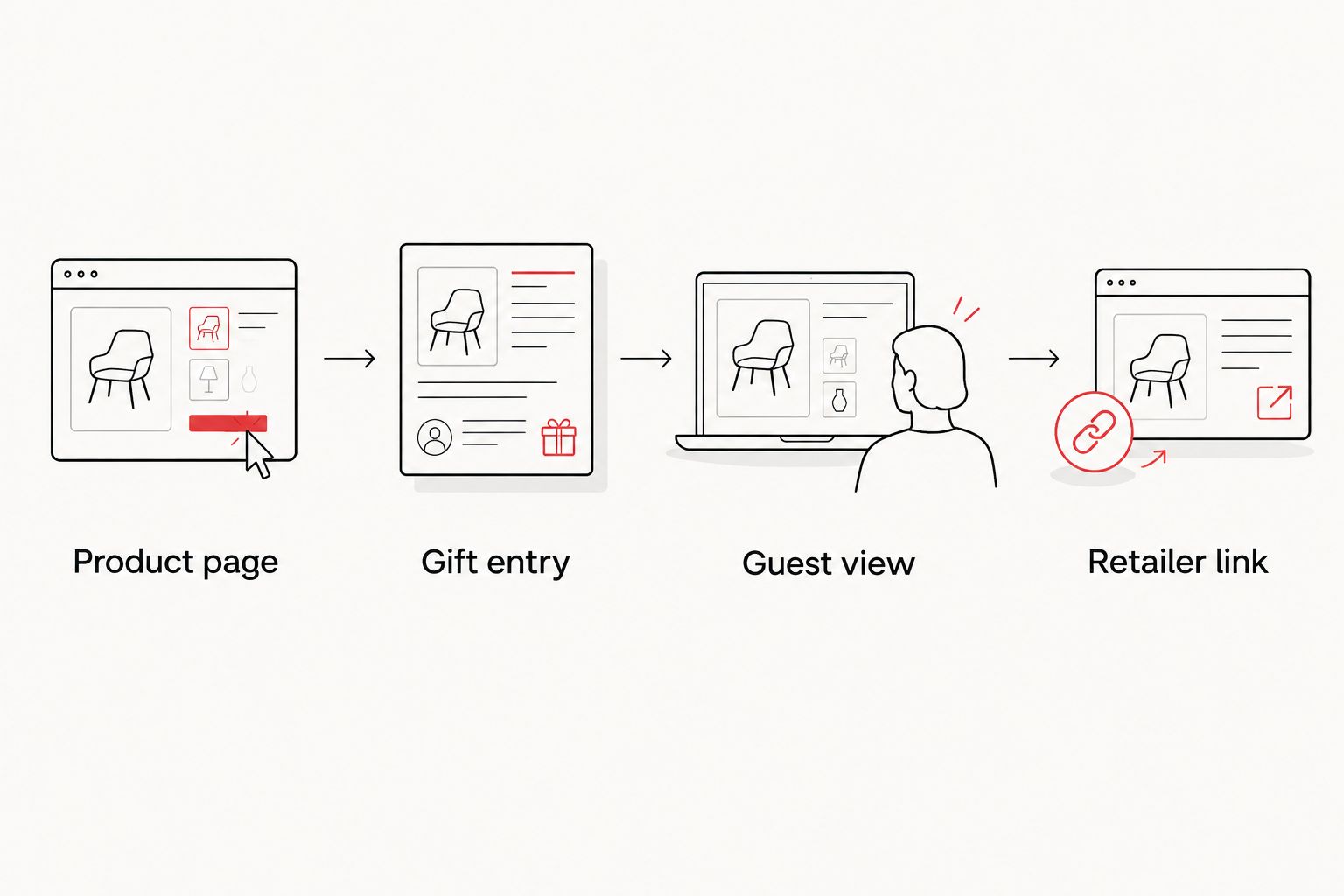
Keep a short private checklist of the items you have verified. You do not need a second public wish list; you need a record of which entries have passed the guest-view check.
Update an existing barware gift
Editing an existing gift is the adjacent workflow when you change your mind about the glass shape, quantity, or variation. It is a manual review, not a live connection between the retailer’s catalog and your registry.
- Open the existing gift in your registry’s editing view.
- Check whether the entry already records any purchases before changing or removing it. Avoid replacing a requested item without considering gifts guests have already bought.
- Update the quantity or descriptive details using the entry’s available editing controls.
- If you are switching to a different product, add and verify the replacement rather than leaving the old product link under a new name.
- Inspect the guest-facing entry again and remove an unwanted duplicate only after checking its purchased status.
Expected result: One clear entry represents each intended gift. An edited title does not point guests toward the previous item.
Review your 2026 registry again before sending invitations or another registry reminder. Use that review to catch changed preferences, duplicate entries, and links that no longer identify the intended product.
Troubleshooting
Add to Zola does not open
Confirm that the browser button is installed in the browser you are currently using. Open the retailer product page directly, then try the button again. If the tool still fails, follow Zola’s browser-button support instructions instead of repeatedly creating new entries.
The imported image or name is wrong
Check that you launched the tool from the individual product page, not a collection page. Correct the imported information using the controls provided. If the image does not distinguish variations, make the item description explicit.
The quantity requests too many glasses
Compare the registry quantity with the retailer’s selling unit. If each set contains 4 glasses and you want 4 glasses total, request 1 set. Correct the quantity before guests start purchasing.
The link opens the wrong variation
Reopen the retailer page and select the intended variation. Check whether the destination retains that selection when opened separately. If it does not, name the variation clearly in the registry description rather than assuming the selection will carry across.
An outside purchase still appears unpurchased
Follow Zola’s instructions for recording a gift purchased at another store. Ask the purchaser to use the purchased-status process shown on the registry; do not infer that retailer checkout and registry tracking are connected.
Customize your workflow
Build the registry in small groups: everyday glasses first, stemmed glasses next, then tools. Verify each group before adding another. That makes duplicated quantities and unclear descriptions easier to spot.
Quality Barware’s bartender-led selection gives you a practical starting point for choosing home bar equipment. The trade-off with an outside-store registry gift is the extra work: you must check the entry, its destination, and the guest instructions yourself.
Request equipment that supports drinks you already make before equipment for a hypothetical future hobby. A useful jigger and suitable glasses earn cupboard space more readily than overlapping sets.
Choose your registry barware
Browse cocktail glasses and home bar essentials chosen by a working bartender.
FAQ
Can I add Quality Barware to my Zola wedding registry?
Yes. Zola supports gifts from other stores through its Add to Zola browser button. Open the individual retailer product page, add the gift, and verify the saved entry.
How do I add barware to Zola wedding registry in 2026?
Use Zola’s Add to Zola browser button from the individual barware product page. Review the item details and requested quantity, save the gift, then check the public registry entry and retailer link.
Should I add the shop homepage or an individual product?
Add the individual product, not the shop homepage. Guests need a destination that identifies the exact glass or tool you want.
How many glasses should I request on my wedding registry?
Request enough glasses for the people you regularly serve, after counting what you already own. Two glasses for a couple or four for a small gathering are starting examples, not mandatory quantities.
Is a coupe better than a rocks glass for a registry?
A coupe suits chilled cocktails served without ice; a rocks glass suits short drinks served over ice. Choose according to your drinks rather than treating one shape as universally better.
Will an outside-store purchase automatically mark the gift as purchased?
Do not assume an outside-store purchase automatically updates Zola. Follow the guest-facing instructions for recording a gift purchased elsewhere so the registry does not invite duplicate purchases.
Do I need to add every glass shape and a complete tool set?
No. Start with glass shapes that match your usual drinks and tools that fill a specific gap. Overlapping glasses and tools take storage space without adding a new function.
One last thing
The most useful final check is not whether the registry looks coordinated. It is whether someone unfamiliar with barware can buy the right item without contacting you.
Before sharing your 2026 registry, ask your partner to inspect one entry from the guest view. Have them identify the product, variation, and total number of glasses requested. If those answers are unclear, fix the entry—not the guest’s understanding.